Orphan Recovery: when you reconnect a site
The single most surprising thing customers discover on Strategy A: your translated CMS rows are in your Webflow site, not in StoreLingo's database. That means when you disconnect StoreLingo from a site, the German and Dutch products stay there. When you reconnect StoreLingo (same site, same account, or a brand new install), StoreLingo doesn't automatically know which rows belong to which source product anymore. That linkage lived in our database; the rows in Webflow have no idea who their parent is.
That's the moment Orphan Recovery exists for.
What's an orphan?
An "orphan translation" is any Webflow CMS row that:
- Has a non-source locale tag (e.g.,
locale = de). - Is not currently linked to anything StoreLingo tracks (our linkage was lost or never existed for this row).
Examples of how orphans appear:
- You uninstalled StoreLingo, used your Webflow site normally for a while, then reinstalled StoreLingo. The German products you published before are still there. They're orphans now.
- You deleted your StoreLingo account and started fresh on a new email. Same site, fresh database, all the existing translations look unfamiliar.
- A previous StoreLingo install on this same Webflow site (maybe by an agency or a colleague) created the locale duplicates. You inherited the site. The translations are valid; we just have no record of them.
What happens
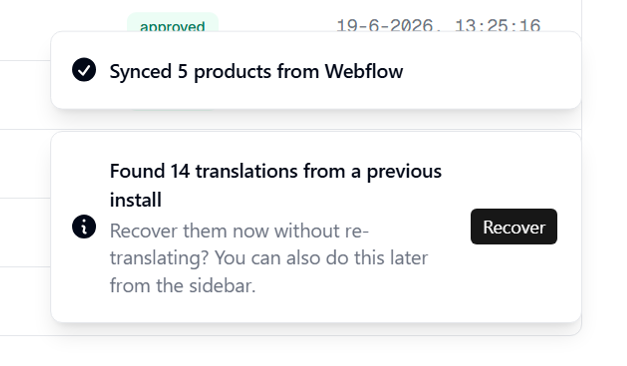
When you connect (or reconnect) a Webflow site, StoreLingo runs an orphan probe in the background as soon as the initial sync completes. If we find any orphans, a toast appears in the panel:
Found 26 translations from a previous install. Recover them now without re-translating?
The toast has a Recover button that opens the Orphan Recovery dialog. You can also open it any time from the sidebar via Find orphaned translations.
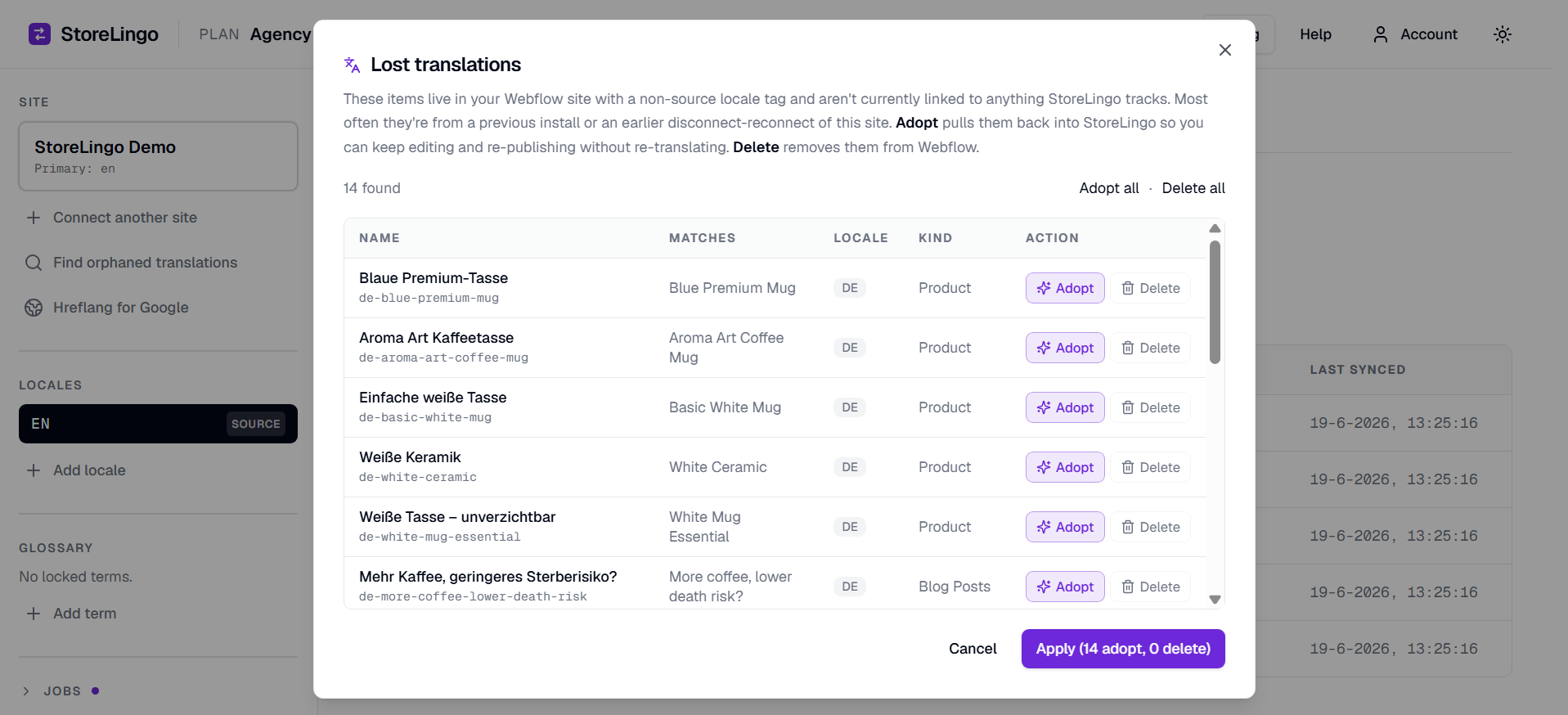
The dialog
The dialog lists every orphan row with five columns:
- Name - the orphan's display name and slug from Webflow.
- Matches - StoreLingo's best guess at which source product this orphan was translated from. Detected via three-layer matching: exact slug, compacted slug (punctuation stripped), and compacted name (accents stripped).
- Locale - the locale tag (e.g.,
de,nl). - Kind - Product, or which CMS collection it belongs to.
- Action - per-row choice: Adopt (default if we matched a source) or Delete (default if no match).
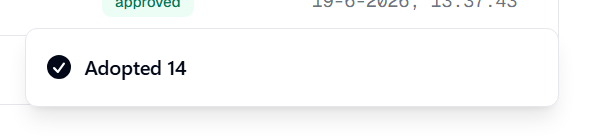
After clicking Apply, you get a confirmation toast showing how many rows were adopted:
The two bulk actions in the header (Adopt all / Delete all) flip every row in one click. Cancel closes without doing anything.
What Adopt does
For each orphan you adopt:
- StoreLingo ensures the locale exists in your StoreLingo locale list (auto-creates if not).
- It fetches the translated field values from Webflow.
- It writes them back into StoreLingo's translation database with
status='approved'(we trust what's already published). - It stamps the linkage so future publishes update this exact Webflow row instead of creating a new one.
End result: you keep editing and publishing as if you never lost the connection. Zero re-translation. Glossary and Translation Memory pick up the existing translations on the next AI run.
What Delete does
Removes the orphan row from Webflow entirely. Use this when:
- You explicitly want to start over with translations.
- The orphan is from an old test you no longer want.
- StoreLingo couldn't match the orphan to any source product (default action for unmatched rows).
Delete is irreversible. The row is gone from Webflow permanently.
Collision safety: why we sometimes show "No match"
The fuzzy matching has a safety guard. If two source products happen to compact to the same key (e.g., a product called "Blue Mug" and another called "Blue-Mug" both collapse to bluemug after stripping punctuation), the matcher refuses to auto-pick one. Both candidates are dropped from the suggestion pool, and the orphan shows "No match" in the dialog.
This is the right behavior. The wrong behavior would be silently picking the first candidate and adopting an orphan onto the wrong source - overwriting the right product's translations on the next publish. Collision guard ensures Adopt never points at the wrong row.
When you see "No match" on a row you know belongs to a specific product, the safest action is Delete + re-translate. The fuzzy matcher won't second-guess you.
When orphan recovery is not the right tool
Orphan Recovery only handles the post-publish recovery case. It does not:
- Resync translations from Webflow back into StoreLingo for already-linked rows (those edits are detected by the regular sync flow).
- Undo a Publish to Webflow. If you published a bad translation, fix it in StoreLingo and republish to update the live row.
- Recover deleted source products. If the original English product no longer exists in your Webflow CMS, the orphan has nothing to adopt onto. Delete or leave it.
What to expect on the demo flow
A reviewer evaluating StoreLingo on the Webflow Marketplace will typically:
- Connect their Webflow site, sync products.
- Translate to one locale, publish.
- Disconnect to test cleanup.
- Reconnect to test recovery.
On step 4 the orphan dialog auto-opens with the previously-published rows. One click on "Adopt all" brings everything back. This is the highest-trust moment in the demo: the reviewer sees their work survive a destructive operation.